ChatGPT, Gemini Live, Claude: How Their Voice Modes Differ
ChatGPT, Gemini Live, and Claude differ in which devices they run on, how much you can use them, and what records they keep. Here are the differences and settings to check before you start talking to them in Korean.
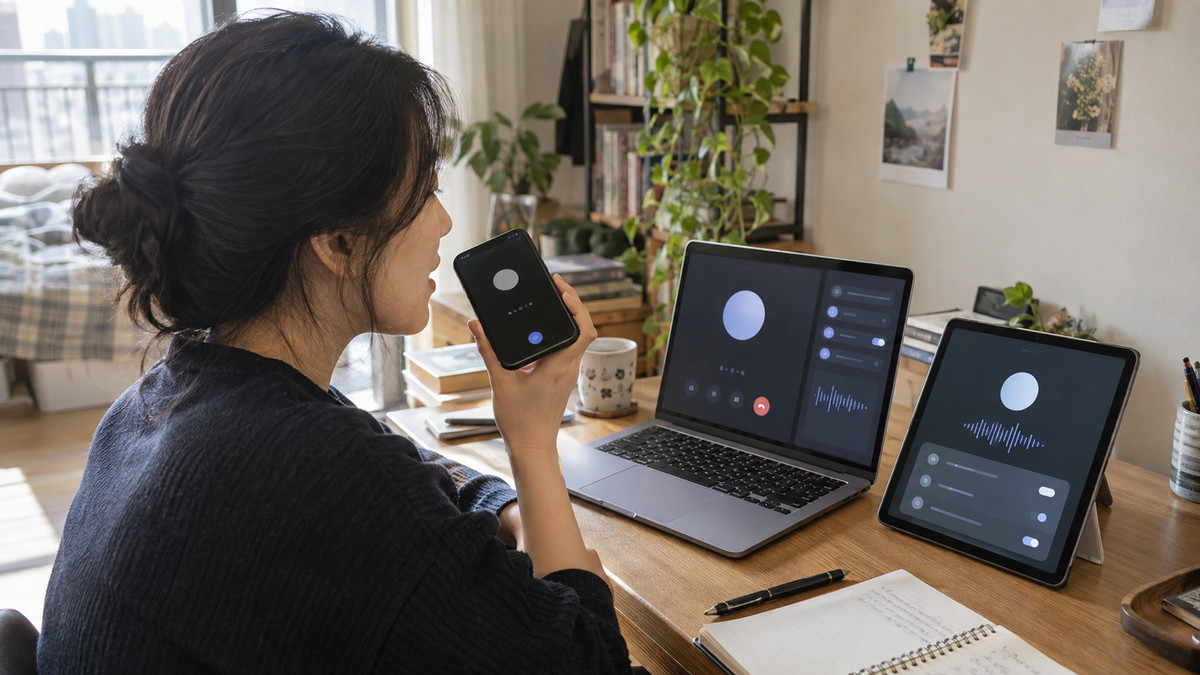
If you want to talk to an AI instead of typing at it, the feature you need is already built into the service you are using. For anyone planning to speak in Korean, the main candidates are ChatGPT’s voice mode and Gemini Live. Three things matter when choosing: whether it runs on your device, how much you can use it, and what kind of record it leaves behind.
What you can actually do by talking
Voice mode simply swaps the channel between you and the AI from text to speech. It is closer to phoning in a question you would otherwise have typed. Start with one short question, listen to the answer, and follow up with whatever comes to mind.
Pick something low stakes to practice on. Sorting out what you need to do today, or asking about a concept you are curious about, is plenty. You might rattle off your to-do list and ask the AI to put it in order. When you hand it real work, though, it helps to decide up front what kind of output you need.
Talking does not mean nothing is recorded. All three services store a text transcript of voice conversations, or can store one depending on your settings. That is why it is worth checking how each service handles audio and text records separately before you start.
Getting started in Korean
First, pick your device. As of September 2026, ChatGPT voice mode works in the iOS and Android apps and on the web. OpenAI documents desktop app voice separately, noting that it applies to qualifying business workspaces and comes with its own usage limits. Gemini Live works on Android phones and tablets, and in the Gemini app on iPhone and iPad. Claude voice mode works in the iOS and Android apps, the desktop app, and on the web.
Next, set the conversation language. ChatGPT supports Korean. As of September 2026, you can choose the voice language by going to Settings, then Voice, then Language. You can also simply ask mid-conversation for the AI to speak in the language you want.
Gemini Live understands what you say in any supported language and answers in that language. Korean is among the supported languages. Ask a short question in Korean and see whether the conversation continues in the language you want.
Finally, check the usage limits and history settings. Rather than planning a long session from the start, try short exchanges and decide whether the feature fits your needs. If you are thinking about using it for work, check whether audio recordings and transcripts are saved and whether your data is used for service improvement before you say anything about actual business matters.
How much you get for free
Here is how free access and usage limits break down across the three services as of September 2026. Read it alongside the device support and it becomes easier to decide where to start.
| Service | Devices where voice conversation works | Free access and limits |
|---|---|---|
| ChatGPT | iOS and Android apps, web (desktop app voice subject to business workspace conditions) | Available on free accounts, with limits. Models and limits vary by paid plan. |
| Gemini Live | Android phones and tablets, Gemini app on iPhone and iPad | Google’s paid AI plans come with higher Gemini app usage limits than non-subscribing accounts. |
| Claude | iOS and Android apps, desktop app, web | Available on every plan, including Free. Voice conversation counts toward general usage limits. |
When comparing limits, look at what the number is actually counting. Do not read an overall Gemini app usage limit as if it were Live call minutes. Overall app usage and voice conversation time are measured differently.
With Claude, voice conversation falls under the plan’s general usage limits. The models you can choose and the number of connected tools also differ by plan. Rather than subscribing purely because a voice feature exists, weigh it together with the features you use day to day.
What happens to recordings and transcripts
Think about records in three parts: whether they are saved, how long they are kept, and whether they are used to improve models. As of September 2026, ChatGPT’s realtime voice recordings are kept along with the text transcript, and the stated retention period is 30 days. If you delete a conversation, the related audio recordings are also deleted within 30 days, barring exceptions.
OpenAI does not use voice recordings for model training unless a user separately opts to share them. Transcripts, on the other hand, may be used for training depending on your account’s data settings and plan. Do not assume that declining to share audio recordings also prevents transcripts from being used to train models.
With Gemini Live, if activity saving is turned on, transcripts and recordings can be stored in your Gemini app activity. Google states that audio, Live video, and screen sharing are not used for service improvement by default. Users who want to can turn on that use themselves.
Even with activity saving turned off, Live conversations are retained for up to 72 hours to provide the service and process feedback. In other words, switching that setting off does not immediately mean deletion. Transcripts of Claude voice conversations are saved in your chat history.
Is dictation support the same as voice mode?
Just because two features both take spoken input does not mean they share the same language support or record-handling rules. Anthropic documents Korean support for Claude’s interface language and mobile dictation. For voice mode, support for languages other than English is described as beta. It is best not to assume that interface or dictation language support carries over to voice mode.
The same goes for guidance on deleting recordings, which should be read feature by feature. Anthropic’s notes on deleting dictation recordings should not be taken as the retention policy for voice mode. It pays to get in the habit of checking that the feature name in the documentation matches the one you intend to use.
Four things to check before you start
- Confirm that the voice feature works on your device.
- Confirm the conversation language you want and open with a short question.
- Distinguish between voice-only limits and app-wide or plan-wide limits.
- Check how recordings and transcripts are retained, and review the settings that control whether each can be used to improve the service.
Anything requiring professional judgment, such as legal or medical matters, should be double-checked with an expert. Choosing a voice assistant is not only about the convenience of speaking your questions. It also hinges on whether it works in your language and on your device, and on how you can manage the records it keeps. It is also worth checking occasionally whether plan limits and data settings have changed while you have been using it.