Connecting Mail and Calendar to AI: Records Can Remain After You Disconnect
Before you connect, check what the AI can read and change. After you connect, check where its answers came from. Here's how to connect ChatGPT, Claude, and Gemini, and what records may remain after you disconnect.
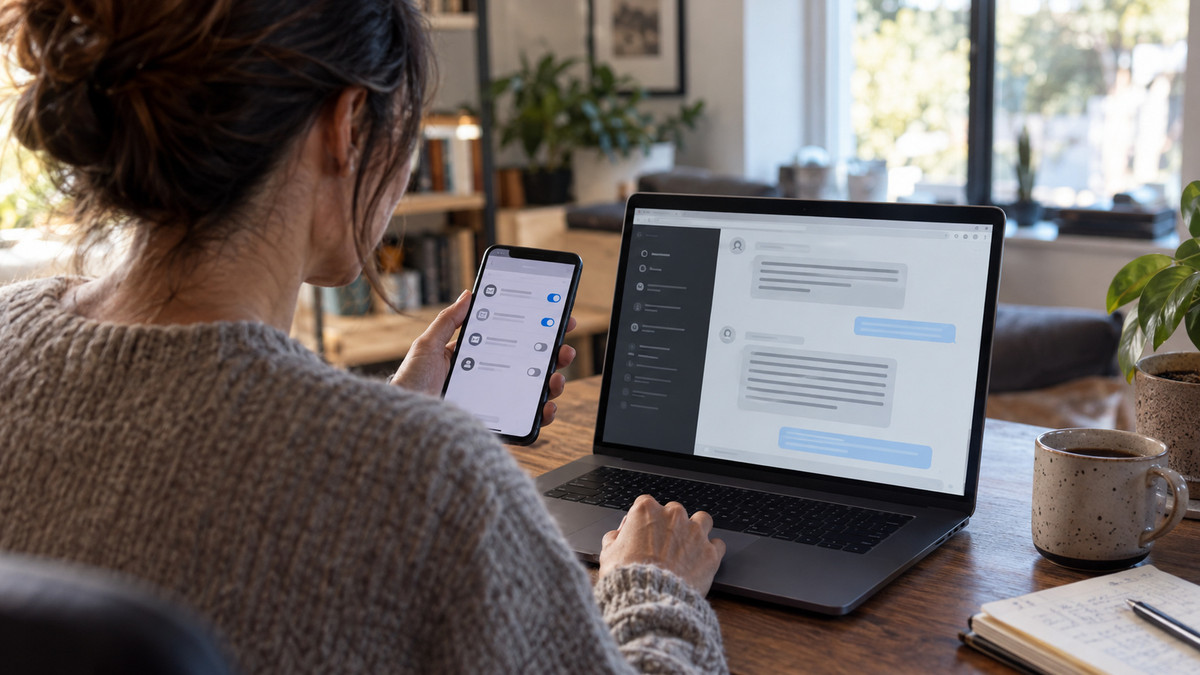
Before you connect your mail and calendar to an AI assistant, decide which account you’re linking and how much access you’re handing over. Depending on the service, the assistant may not stop at reading your information. It may also send mail or change appointments. And disconnecting doesn’t necessarily wipe your conversations or activity history. It’s worth thinking about permissions and record-keeping together.
What the AI can actually do once connected
Connecting mail and calendar is a bit like giving an assistant a badge that opens the door to your work files. What matters is how far that badge reaches. Permission to read your data and permission to change it are two different things.
Claude can search, read, and send mail in Gmail. In Google Calendar, it can look up events and create, edit, or delete them. Gemini can find and summarize information from Gmail and other sources, and it can create and manage Google Calendar events. ChatGPT may request permission to modify mail or change events, depending on the task being supported.
So it helps to decide up front what you want to delegate. Whether you only want the AI to look things up in your mail, or you want it to actually send messages and move meetings, determines which items on the consent screen deserve a closer look. Don’t assume that something labeled “mail connection” is read-only.
How to connect your own account
The connection steps and settings locations below are current as of September 2026. When you connect, confirm whether you’re using a personal or a work account, and double-check the account you select on the authentication screen.
- ChatGPT: Go to Plugins in Settings, choose an app, and connect your account. Review the permissions requested on the consent screen. Gmail and Google Calendar access follows the permissions and organizational settings of the Google account you connect.
- Claude: Manage the Gmail or Google Calendar connector under Connectors in the Customize menu. Connectors are the feature that links external services. You authenticate with a Google account, and access is limited to data visible to that account.
- Gemini: Sign in with the same Google account as the Workspace you want to connect. When you make a request about mail or events, a connection prompt appears. Keep Activity must be turned on for the connection to work. Work or school accounts may require administrator approval.
With work accounts, the connection screen alone often won’t tell you whether you can use the feature. ChatGPT is subject to organizational settings, and Gemini may require administrator approval. With Claude, on Team and Enterprise plans, an organization’s Owner or Primary Owner has to enable the connector before individual users can authenticate. Check what your company or school allows before you connect.
Three services, three approaches
When choosing a service, compare the tasks you want to perform alongside the way each one handles approvals. If summarizing mail is your goal, look at the lookup features. If sending mail or managing your calendar is the goal, look at the modification permissions and the confirmation step before anything runs.
| Service | Mail and calendar capabilities | What to check when connecting |
|---|---|---|
| ChatGPT | May request permission to modify mail and change events, depending on supported tasks | Permission list on the consent screen, organizational settings |
| Claude | Search, read, and send mail; look up, create, edit, and delete events | Access scope of the connected account, approval before execution |
| Gemini | Search and summarize information from Gmail and elsewhere, create and manage events | Same Google account, Keep Activity enabled, administrator approval |
Claude asks for approval before running actions such as sending mail by default. Don’t assume that description applies to every task on every service. Read what the approval request says and confirm what will actually be executed. When you delegate sending or editing, check the target as well as the content.
Can you trust an answer based on your own mail?
Even when an answer draws on your own mail, get in the habit of checking the source. Google notes that Gemini may make errors such as using outdated mail content in its answers. Connecting an account doesn’t by itself guarantee that an answer reflects the latest information.
Say you ask about a meeting time. Cross-check the date of the email mentioned in the answer against the actual event details. When you delegate a schedule change, it’s worth confirming which event is being changed and how. The idea is to treat reading the AI’s answer and approving an actual change as two separate checkpoints.
The fact that a tool can read or summarize your mail doesn’t mean you can hand over professional judgment. Anything requiring expert judgment, such as legal or medical matters, should be verified with a professional.
Does disconnecting delete the record?
Disconnecting and deleting records are two separate things. As of September 2026, ChatGPT lets you select a connected account under Plugins in Settings and disconnect it. But disconnecting doesn’t delete existing conversations or saved memories. When you’re done using a connection, review your conversations and saved memories separately.
With Claude, you disconnect under Connectors in the Customize menu. Content pulled in through a connector is retained along with the related conversations. Even after disconnecting, you should check what remains in those conversations.
With Gemini, you disconnect under Connected Apps in Settings. Doing so does not delete Gemini Apps activity that has already been saved. Activity history has to be managed separately. For all three services, pressing the disconnect button doesn’t mean your cleanup is finished.
Five things to check, before and after
- Confirm that the Google account you’re connecting is the right one.
- Review the permissions requested on the consent screen, including reading, sending, and editing.
- For work accounts, check organizational settings and whether administrator approval is required.
- Check the source and date of each answer, and verify the target and content of any action before it runs.
- After disconnecting, review conversations, saved memories, and activity history separately.
Connecting mail and calendar expands both the information an AI can draw on and the work you can hand to it. Three criteria guide the decision: the access you’ve granted, the actions that will actually run, and the records left behind after use. Even as features and settings change, keeping those three in view will tell you whether a given connection is right for you.